
Let's explore how to effectively align your knowledge base with your brand guidelines.
Open Settings
Go to your dashboard and click on the gear icon at the bottom left of your page. Go to Knowledge Base › Knowledge bases, select your knowledge base, then open the Design tab.
Choose a Primary Color
Select a primary color that reflects your brand identity. This color will be used throughout the Knowledge Base.

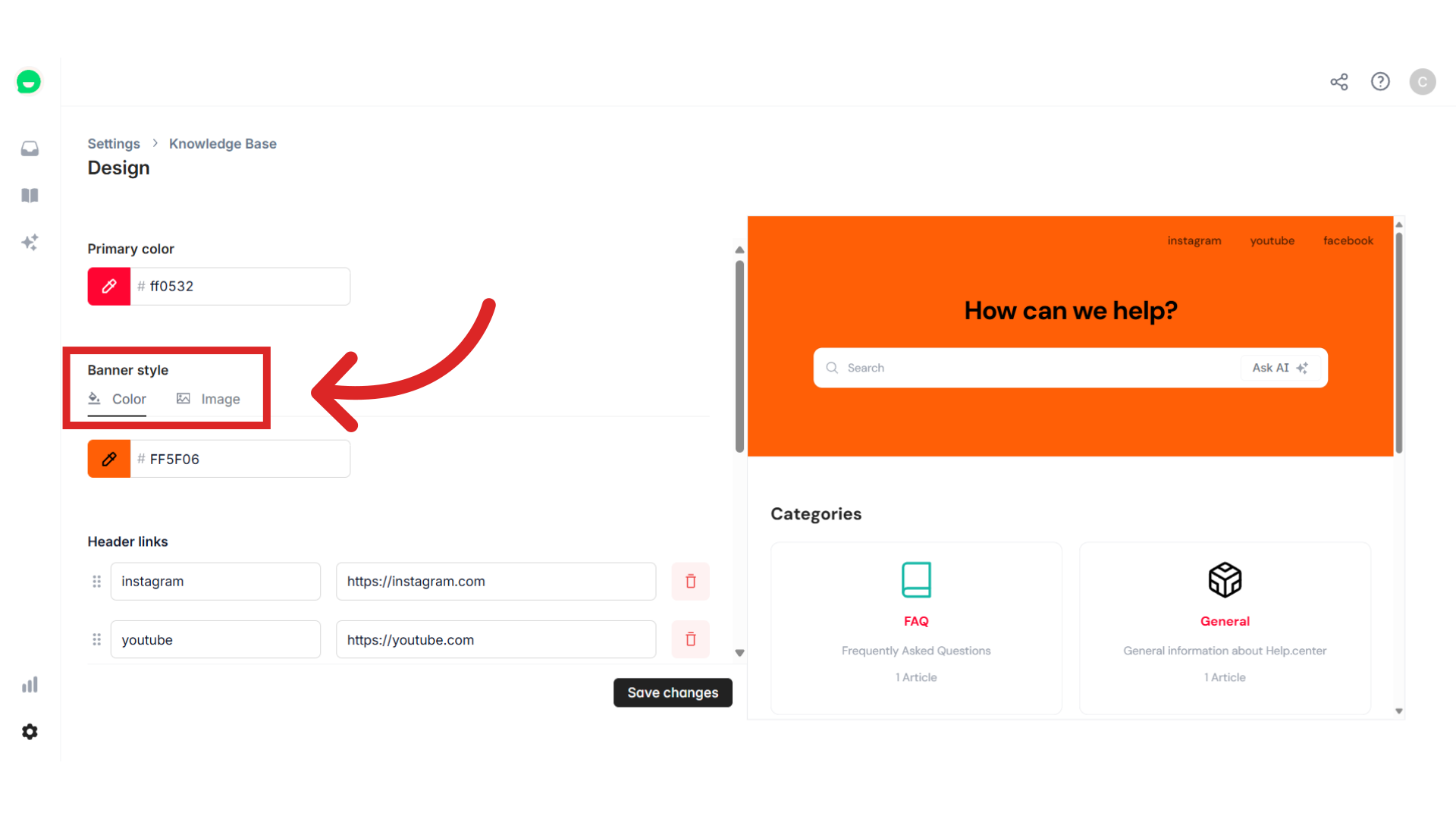
Change the Banner
Upload an image that reflects your brand. If you prefer a solid color, you can also select a shade that complements and contrasts well with your primary color.
Note
The banner options only show when the Classic layout is selected. The Documentation layout doesn't have a banner.
Add Header Links
Click on + New link to add additional links to the header of your Help Center.

Choose a Header Logo
Choose a high-quality logo image that represents your brand.

Still need help?
Contact us